To add a WhatsApp button to your website, link a button to https://wa.me/ followed by your full phone number in international format, for example https://wa.me/919812345678. When a visitor taps it, WhatsApp opens a chat with your business. For a floating button with a greeting, your team's name and working hours, use a chat widget instead. It takes one snippet of code.
A WhatsApp button turns "I'll email them later" into a conversation right now. Visitors can ask a quick question from their phone, and you get their number and context in the same moment.
Three ways to add WhatsApp to your website
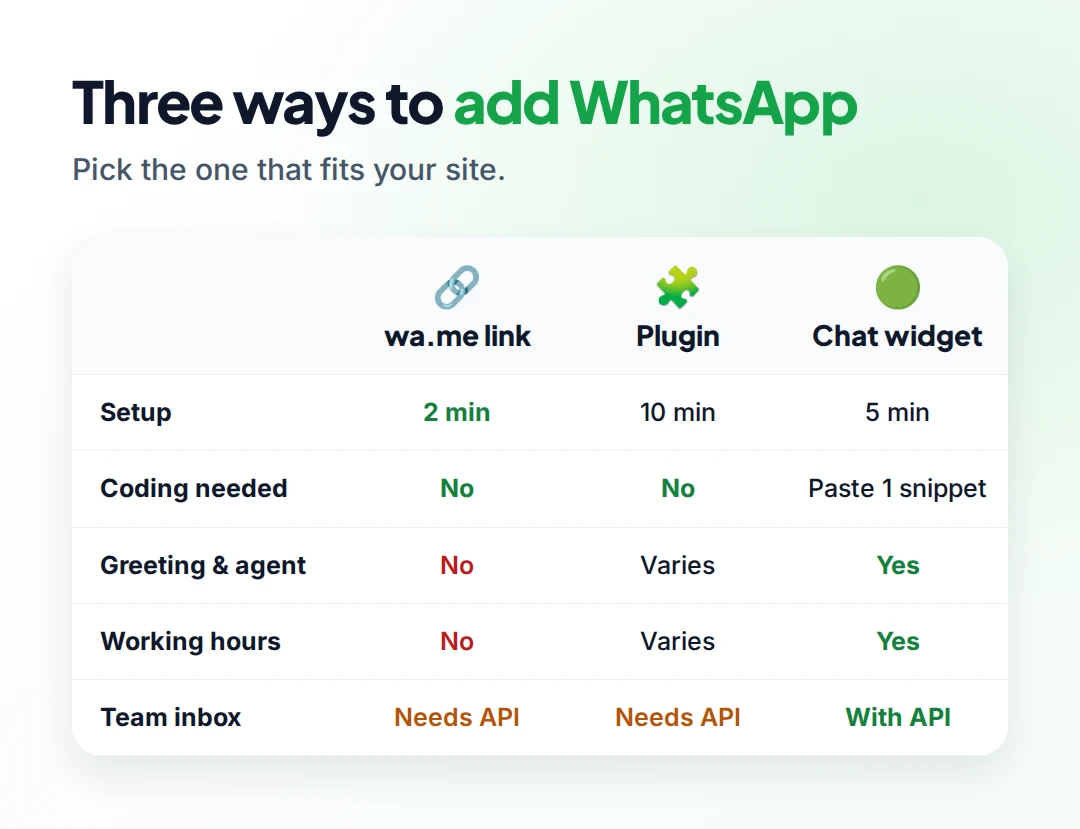
| Option | Best for | Effort |
|---|---|---|
| wa.me link on a button or text | Any site, the quickest start | 2 minutes |
| Plugin (WordPress, Shopify apps and similar) | Sites built on a platform with an app store | 10 minutes |
| Chat widget with greeting and hours | Businesses that want a polished, managed button | 5 minutes |
Option 1: a wa.me link (no code)
WhatsApp's click to chat feature opens a chat with any number from a link (WhatsApp Help Center).
- Write your number in international format, digits only. No plus sign, spaces, brackets or leading zero. For example, +91 98123 45678 becomes
919812345678. - Build the link:
https://wa.me/919812345678 - Add a pre-filled message (optional) with
?text=and URL-encoded text:https://wa.me/919812345678?text=Hi%2C%20I%27d%20like%20to%20know%20more - Put the link behind a button, an icon or a "Chat on WhatsApp" text link on your site.
Tip: use a different pre-filled message on each page, like "Hi, I'm interested in the Pro plan" on your pricing page. You'll know exactly what the visitor was looking at.
The same link works in your Instagram bio, email signature, Google Business Profile and as a QR code on printed material.
Option 2: a plugin
Website builders such as WordPress and Shopify have many WhatsApp button plugins and apps. They add a floating button without code. Check three things before installing one:
- Does it slow your site? Some load heavy scripts on every page.
- Is it maintained? Look at the last update date and reviews.
- What happens to the chats? Most plugins just open WhatsApp on your phone. They don't give your team a shared inbox.
Option 3: a chat widget with greeting and working hours
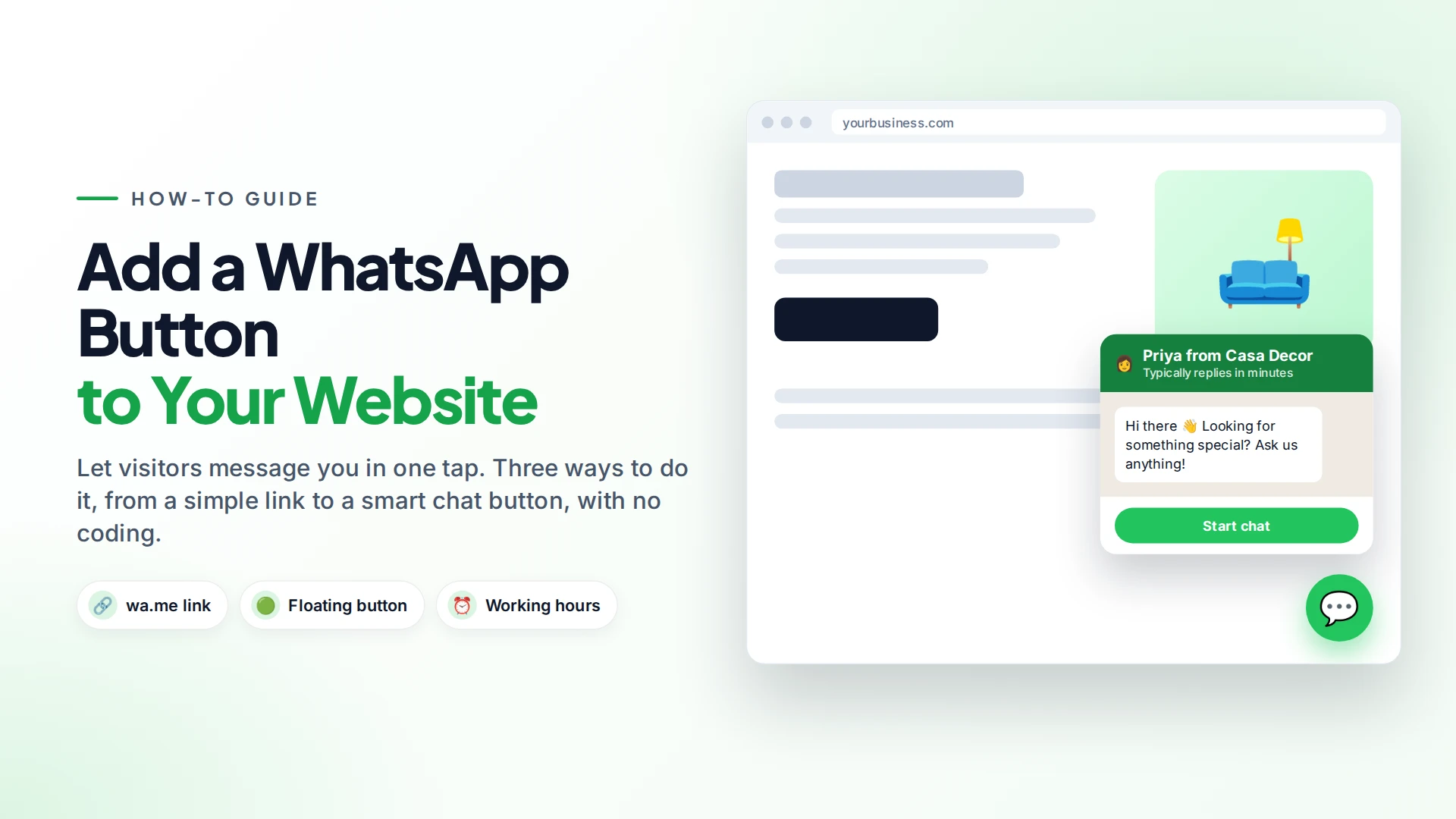
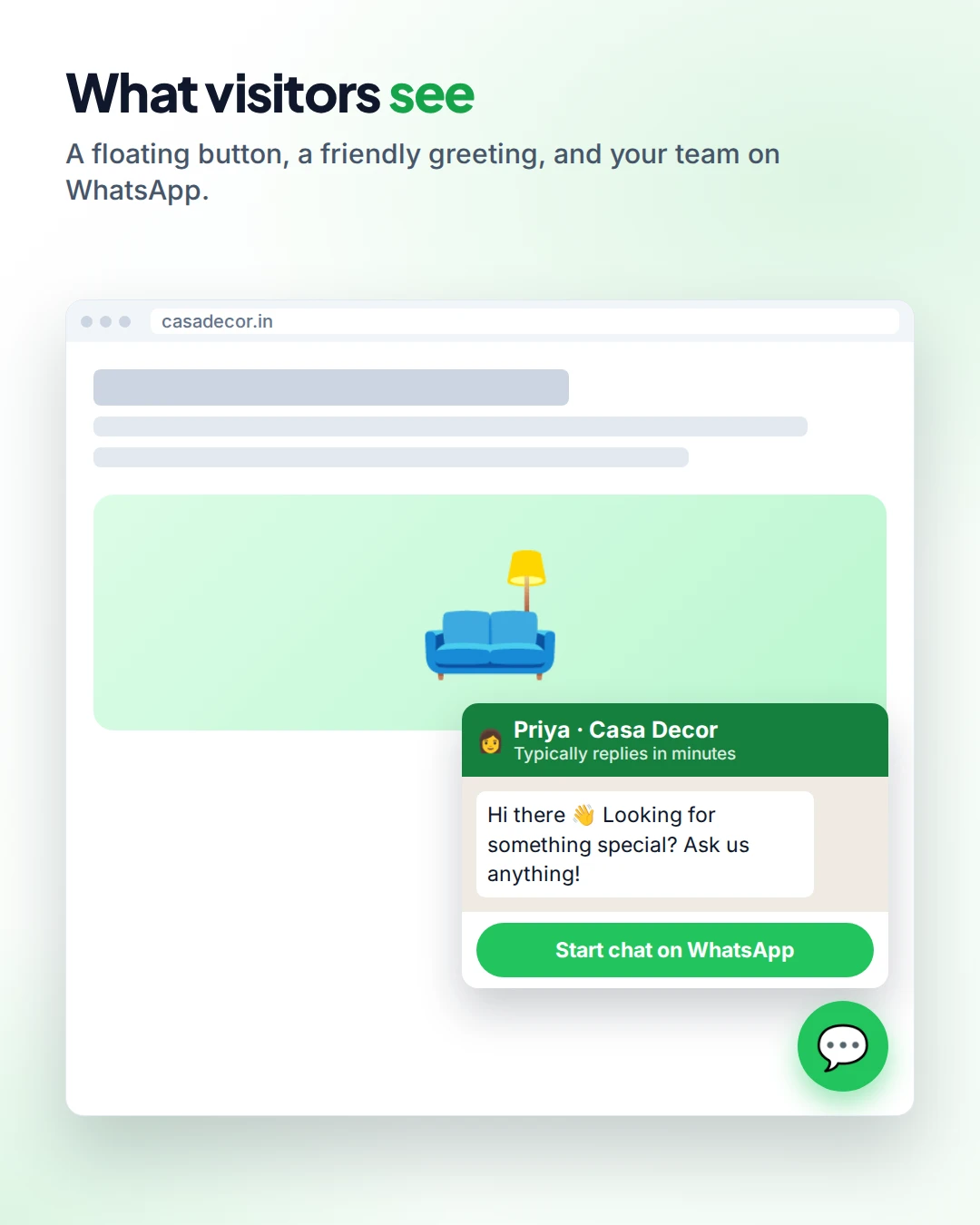
A chat widget shows a floating button and a small pop-up with a friendly greeting, a name and a "Start chat" button. It feels more like talking to a person.
Useful widget features:
- A greeting such as "Hi there 👋 Looking for something special? Ask us anything!"
- A name and colour, so the button matches your brand.
- A pre-filled message, so the first message tells you where the visitor came from.
- Working hours, so the button only shows when someone can answer.
- Allowed domains, so the button only appears on your own website.
Where should the button go?
- Bottom-right corner, floating. That's where visitors expect chat.
- Product and pricing pages, where questions come up.
- Contact page, next to your phone and email.
- Not on checkout pages, where it can distract from finishing the purchase. Test this on your own site.
What happens after someone taps it?
The button is only half the job. Someone has to reply, fast.
- Set an automatic greeting for new chats and an after-hours reply. See 10 WhatsApp tasks you can automate.
- Share the number with your team through a shared inbox, instead of one person's phone.
- Answer common questions automatically with keyword replies or an AI chatbot.
Replies to a visitor who writes to you are sent inside a 24-hour customer service window. From 1 October 2026, Meta charges for these replies as well (Meta's pricing update). Our pricing guide explains the details.
Setting it up with Omni
Omni includes a website chat widget under WhatsApp → Widget. You set the greeting, name, colours, position, pre-filled message, working hours and allowed domains, then paste one snippet before the closing </body> tag (step-by-step docs). The button loads its settings from Omni, so later changes appear on your site without touching the code again.
Chats from the button land in your team inbox next to Instagram and Messenger messages, where automations and your team can pick them up.
Sources
Frequently asked questions
How do I create a WhatsApp link for my website?
Use https://wa.me/ followed by your full phone number in international format with digits only, for example https://wa.me/14155550132. Add ?text= and a URL-encoded message to pre-fill the first message.
Is adding a WhatsApp button to my website free?
A wa.me link is free. Chat widgets and plugins may be free or paid. If you answer through the WhatsApp Business Platform (API), Meta's message charges may apply.
Can I add a WhatsApp button without coding?
Yes. A wa.me link can go behind any button in your website builder, and most plugins need no code. A widget usually needs one snippet pasted into your site once.
Can the WhatsApp button show only during business hours?
Yes, with a widget that supports working hours. Outside those hours, the button is hidden, so visitors aren't left waiting.
Does the WhatsApp button work on desktop?
Yes. On a computer, the link opens WhatsApp Web or the desktop app. On a phone, it opens the WhatsApp app directly.
- #whatsapp button
- #website chat
- #wa.me link
- #lead generation
- #whatsapp widget
The Omni Team
The Omni team builds the shared inbox, AI chatbots and automation tools businesses use to talk to customers on WhatsApp, Instagram and Messenger.
Put this into practice with Omni
One inbox for WhatsApp, Instagram and Messenger, with AI chatbots, campaigns and automation. Start on the free plan.