WhatsApp automation means letting software send the messages your team would otherwise type by hand: the greeting, the answer to "what are your prices?", the order update, the appointment reminder. On the official WhatsApp Business Platform (the API), you can automate all of these, as long as you follow Meta's rules on templates and opt-in.
The best tasks to automate are the ones that repeat many times a day and always get the same kind of answer. Complex, emotional or high-value conversations should still go to a person.
In short:
- Automate the repetitive stuff: greetings, FAQs, after-hours replies, confirmations, reminders and status updates.
- Messages you start yourself (reminders, updates, offers) must use a template, a message format Meta approves in advance.
- Only message people who agreed to hear from you.
- Always give customers an easy way to reach a real person.
What can you automate on WhatsApp?
You can automate two kinds of messages. Replies answer something a customer sent you. Business-initiated messages are ones you send first, such as a reminder or a shipping update.
Replies are the easy part. When a customer writes to you, a 24-hour "customer service window" opens, and you can reply freely during it. Business-initiated messages, or any message after that window closes, must use an approved template. Our guide on getting WhatsApp templates approved covers how that works.
Here are the 10 tasks most small businesses can hand off first.
| # | Task | Type | Needs a template? |
|---|---|---|---|
| 1 | Welcome message | Reply | No |
| 2 | After-hours reply | Reply | No |
| 3 | Keyword answers (prices, address, menu) | Reply | No |
| 4 | AI answers from your own content | Reply | No |
| 5 | Lead questions and tagging | Reply | No |
| 6 | Hand-off to the right person | Reply | No |
| 7 | Appointment confirmations and reminders | Business-initiated | Yes (utility) |
| 8 | Order and shipping updates | Business-initiated | Yes (utility) |
| 9 | Abandoned cart reminders | Business-initiated | Yes (marketing) |
| 10 | Follow-ups after a sale or visit | Business-initiated | Yes |
1. Send a welcome message to new chats
A welcome message greets anyone who writes to you for the first time and tells them what you can help with. It sets expectations ("We reply within 1 hour, 9am–7pm") and stops people from feeling ignored.
Keep it short and offer 2–3 clear choices, for example buttons for Prices, Book a visit and Talk to us.
2. Reply automatically outside business hours
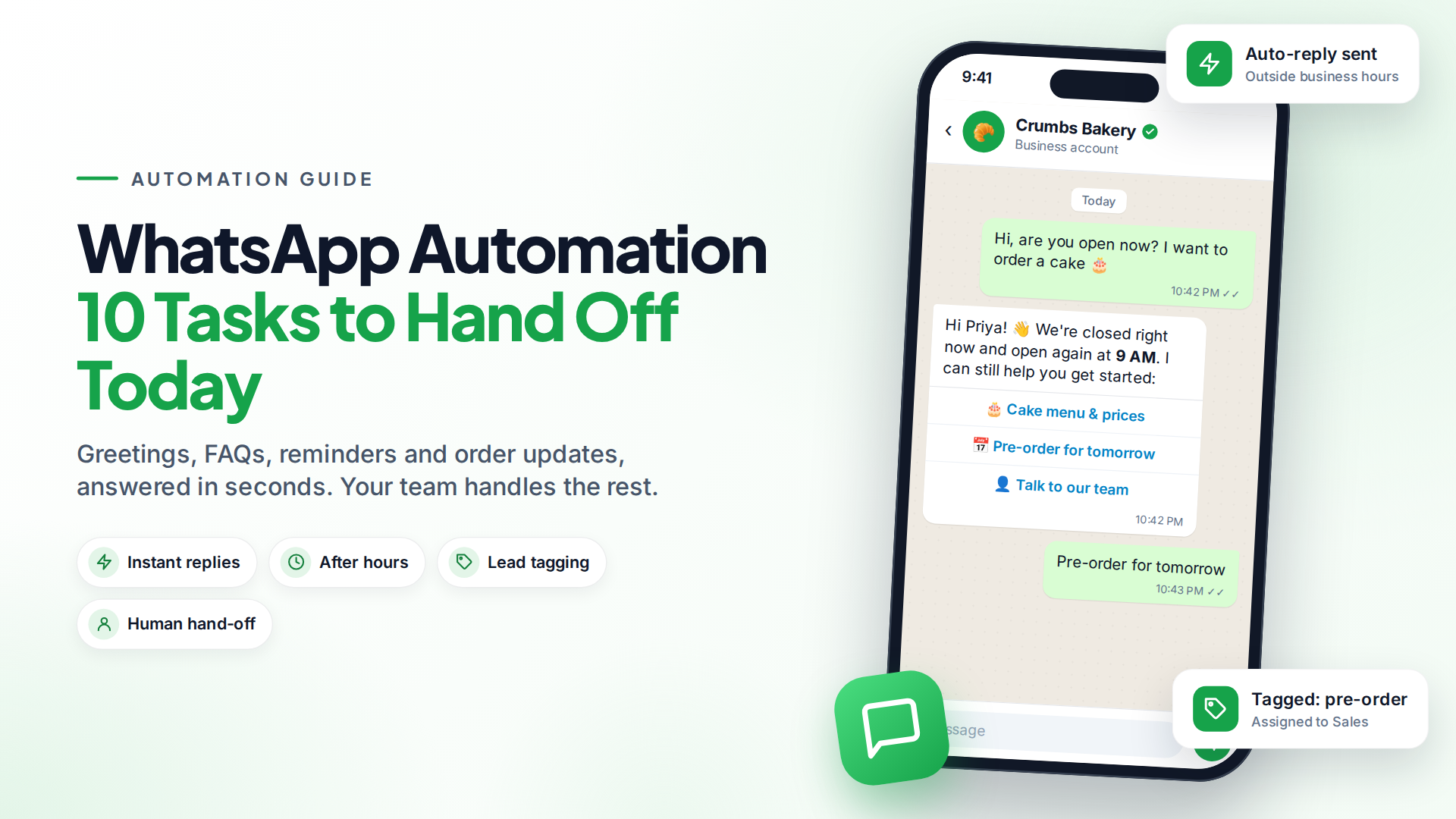
An after-hours reply tells people when you'll be back. It's one of the simplest automations and one of the most appreciated, because silence at 10pm reads as "they don't care".
For example: "Thanks for your message! We're closed now and open again at 9am. Leave your question here and we'll answer first thing."
3. Answer common questions by keyword
Keyword replies send a set answer when a message contains a word like "price", "location" or "timing". They're predictable and cheap to run, and they suit businesses with a short list of repeat questions.
Their weakness is that customers don't always use your words. "How much?" and "rate?" mean "price" too, so list the variations you actually see in your chats.
4. Let an AI chatbot answer from your own content
An AI chatbot reads your website, FAQs or documents and answers questions in natural language, even when they're phrased in ways you never predicted. It works well when you have more questions than you can list as keywords.
The key is to make it answer only from your content and hand over when it isn't sure. Our guide to building a WhatsApp AI chatbot walks through the setup.
5. Qualify leads with a few questions
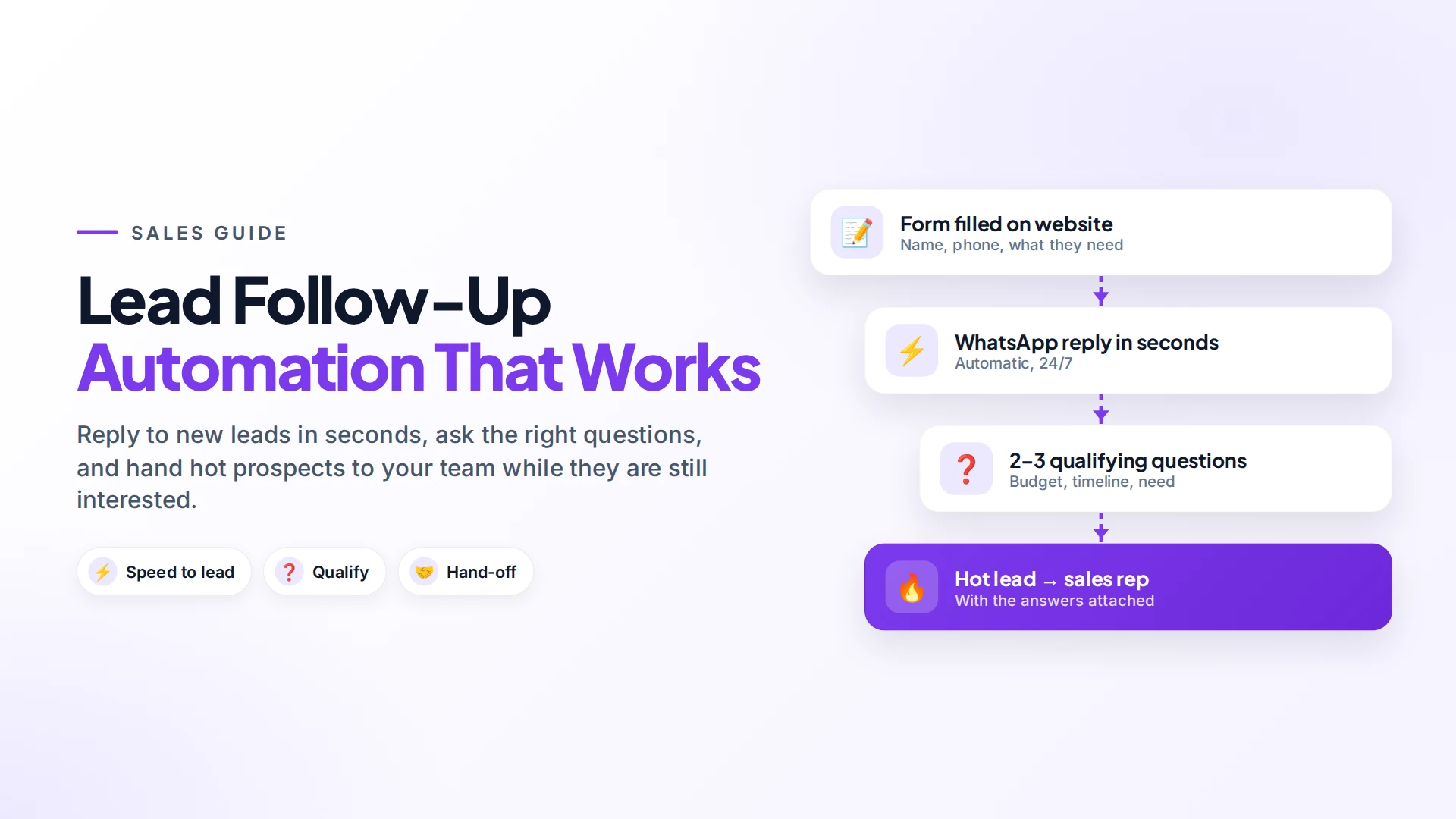
Instead of an agent asking the same three questions every time, an automation can ask them: What are you looking for? What's your budget? When do you need it? It saves the answers on the contact and tags them, for example hot-lead or just-browsing.
Your sales team then starts every conversation already knowing what the customer wants.
6. Hand the chat to the right person
Automation should make it easier to reach a human, not harder. Good flows send the chat to a person when the customer asks for one, when the bot can't answer, or when the topic needs a person (complaints, refunds, large orders).
Routing by topic helps too. Billing questions go to accounts, product questions go to sales.
7. Confirm and remind people about appointments
Clinics, salons, tutors and consultants lose money when people don't show up. An automatic confirmation when someone books, plus a reminder before the appointment, is one of the highest-value automations you can set up.
A Cochrane review of seven studies found attendance rose from about 68% to 79% when people got mobile text reminders (Gurol-Urganci et al., 2013). Those were SMS studies, but the idea carries over to WhatsApp. See our full guide to WhatsApp appointment reminders.
8. Send order and shipping updates
"Where is my order?" is the most common question for most online stores. Sending the answer before they ask cuts those chats a lot: order confirmed, shipped (with the tracking link), delivered.
These are utility templates, which usually cost less than marketing messages. See WhatsApp order notifications for Shopify and WooCommerce.
9. Remind shoppers about abandoned carts
A friendly reminder an hour or so after someone leaves items in their cart can bring back sales you'd otherwise lose. Because it's promotional, it's a marketing template and should only go to shoppers who opted in, for example at checkout. Our abandoned cart guide shows how to do this without annoying people.
10. Follow up after a sale or visit
A thank-you message, a care tip, a review request or a "time to reorder?" nudge keeps customers coming back. Space these out and keep them useful. One helpful message a week beats a daily sales push.
What should you not automate?
Don't automate conversations where a mistake is costly or where the customer needs empathy. That includes complaints, refund disputes, medical or legal questions, and negotiations on large deals.
Also avoid:
- Messaging people who never opted in. Meta's rules require clear opt-in that names your business (Meta opt-in guidance). Unwanted messages get blocked and reported, which lowers your quality rating.
- Loops with no exit. Every flow should let the customer reach a person.
- Chatty bots. Several short bubbles instead of one clear reply add cost, because Meta charges for service messages from 1 October 2026 (more below).
How much does WhatsApp automation cost?
There are two separate costs: your software subscription and Meta's message charges.
Meta charges per delivered template message, with rates that depend on the category and the recipient's country (Meta pricing). Replies inside the 24-hour window have been free. From 1 October 2026, Meta also charges for service messages and for utility templates sent inside that window (Meta's pricing update).
In practice, this means well-written automation saves money as well as time. One clear answer costs less than three. Our WhatsApp API pricing guide has the details.
How to start: a simple 4-step plan
- Read your last 100 chats. Write down the 10 questions and requests that come up most.
- Pick 2–3 quick wins. Usually the welcome message, after-hours reply and your top FAQ.
- Add one business-initiated flow. Reminders for a service business, order updates for a store.
- Check results after two weeks. See which automations run, where customers ask for a person, and fix the gaps.
In Omni, you can set up quick keyword, welcome and after-hours rules under WhatsApp auto-replies. Multi-step flows go in the no-code automation builder, which has triggers for new messages, orders, abandoned carts and lead stages. You can describe a flow in plain English and get an AI-drafted first version to review. It sits alongside your team inbox, so a human can take over any conversation.
Sources
Frequently asked questions
Can I automate WhatsApp with the free WhatsApp Business app?
Only a little. The app has a greeting message, an away message and quick replies. Chatbots, multi-step flows, integrations and team access need the WhatsApp Business Platform (API).
Is WhatsApp automation allowed by Meta?
Yes, on the official WhatsApp Business Platform. You must follow Meta's policies: get opt-in before messaging people, use approved templates for business-initiated messages, and give customers a way to reach a person.
Will automation make my business feel robotic?
Not if you automate the right things. Customers like instant answers to simple questions. Keep complex or emotional conversations with your team, and make the hand-off easy.
Do I need a developer to set up WhatsApp automation?
Usually not. No-code tools let you build flows by dragging steps onto a canvas. You may need help only to connect an unusual system, for example a custom booking tool through a webhook.
What is the difference between a keyword reply and an AI chatbot?
A keyword reply sends a fixed answer when a message contains a specific word. An AI chatbot understands questions phrased in many ways and answers from your content, but it needs good source material and a clear hand-off rule.
- #whatsapp automation
- #automation
- #whatsapp business api
- #small business
- #chatbots
The Omni Team
The Omni team builds the shared inbox, AI chatbots and automation tools businesses use to talk to customers on WhatsApp, Instagram and Messenger.
Put this into practice with Omni
One inbox for WhatsApp, Instagram and Messenger, with AI chatbots, campaigns and automation. Start on the free plan.